Tuesday, June 9, 2020

The Live HTML Editor


The Live HTML Editor program lets you write your HTML pages while viewing dynamically what changes are happening to your HTML page. The main purpose of this tool is to help HTML learners learn HTML quickly and easily while keeping an eye on what they are doing with their HTML page. It also helps developers in writing quick HTML lines to see how it will affect their HTML page.

This program can also help you visualize your inline and embedded CSS styles on fly. You can apply CSS styles and see them dynamically change the look and feel of your HTML page. Developers can test different inline and embedded CSS styles to make sure what will look good on their website.

Some of the features of this program are:
  •          Live HTML preview of whatever HTML you type.
  •          Supports HTML Syntax Highlighting.
  •          Supports opening an HTML file and Live Preview editing of that file.
  •          Supports Saving files.
  •          Support for inline and embedded CSS.

However this program does not support Javascript and it also doesn't support separate CSS files. This program is still in development phase and we might see support for Javascript and separate CSS files in the future.

If you are a student and want to learn HTML without having to install a bulky software that takes a lot of time to open and function, then this is a good option.

The Live HTML Editor is Free and Opensource project and has been written in Python with QT interface you can check out source from sourceforge.
Related links

15 Hidden Android Features You Should Know

While Android has matured by leaps and bounds, it's still going through the refinement phase. Over time, Google has both added and removed many popular features in Android. Sometimes the features are completely removed. However, in many cases, they make it to the Settings page or they are buried under different hidden places inside Android. That's why we have come up with this article where we unearth 15 hidden Android features that are quite interesting and helpful. So, let's go ahead and explore some unique Android features which are available on our Android devices.


Hidden Android Features

Here, we have mentioned several hidden Android features ranging from privacy, security, ease of use and more. Further, we have also added some obscure Android features which were released recently but might have gone under the radar. Now with that said, here are the hidden Android features that you should know and use often.

1. Block Spam Calls

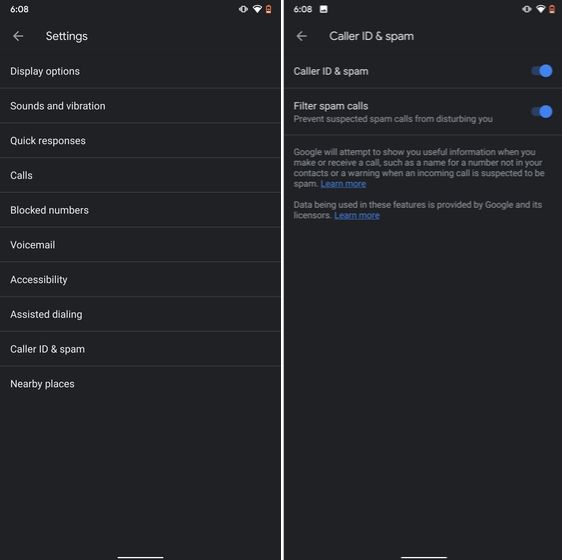
The one feature that I turn on whenever I set up a new Android device is: filter spam calls. It saves me from unwanted calls by telemarketers, fraudsters and spammers. If you use a stock Android device, you must have the Phone app by Google installed as your default dialer. To enable spam call blocking, open the Phone app and tap on the three-dot menu on the top-right corner and open Settings. After that, open "Caller ID and spam" and enable both the toggles. Now, whenever you will receive a call by spammers, the screen won't light up or make any sound. It's almost like DND with Total Silence turned on.

1. Block Spam Calls hidden android features

If you are worried that you will miss important calls then fret not. I have been using this feature for a long time and I can vouch that it works flawlessly. While there are other apps like Truecaller with similar features, you should be wary against handing your data to third-party apps, especially given its shady past record.

2. Verification Code Autofill

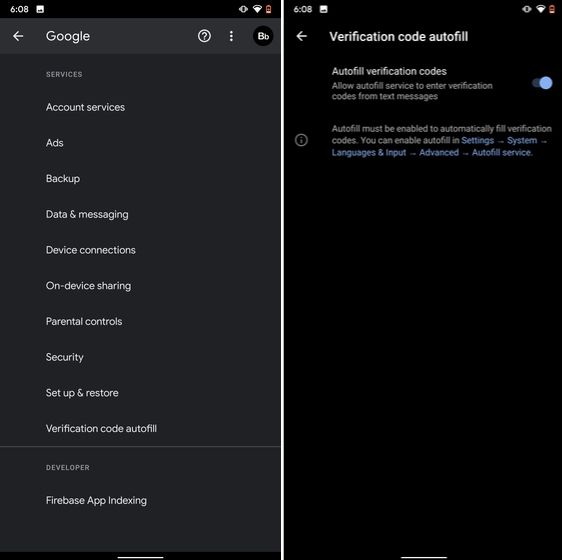
Many of us have allowed SMS permission to multiple apps for seamless OTP verification. However, this can lead to serious breach as apps can read all your text messages and also build credit profile without your consent. To crack down on this behavior, Google has brought a new API called the SMS Retriever. It allows apps to capture a one-time code without asking for SMS permission. In case, the app developer has not implemented this API, Google will act as a bridge and provide the verification code. That is awesome, right? So to enable this feature, navigate to Settings -> Google -> Verification Code Autofill and enable the toggle. Make sure you have also enabled the Autofill service by Google.

2. Verification Code Autofill

3. Force Dark Mode on all Apps

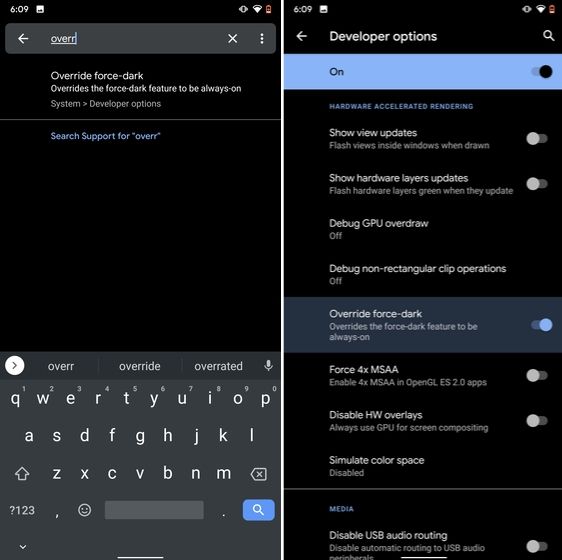
While the dark mode is slowly becoming the norm, there are still apps like Facebook and WhatsApp which are yet to embrace the dark side. If you want to force dark mode on a range of apps then there is a hidden Android setting that lets you do it. However, you must be on the latest Android 10 build. To enable dark mode for all the apps, navigate to Settings -> About Phone and tap on the Build Number for seven times continuously. A toast notification will show up prompting "Developer Options have been enabled". Now go back, and search for "Override force-dark" in the Settings page. Tap on the first result and then enable the toggle. Just to be sure, restart your device and check if dark mode is working on all apps.

3. Force Dark Mode on all Apps

4. Focus Mode

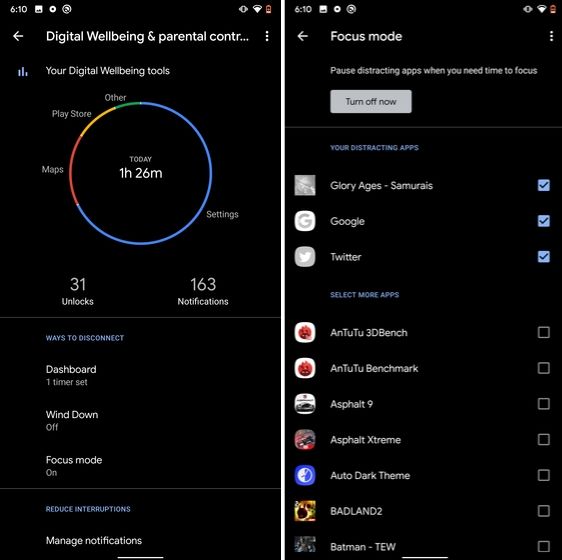
Google has brought a new feature called Focus Mode to Digital Wellbeing with the launch of Android 10. While Digital Wellbeing is great at limiting the screen time of various apps, Focus Mode allows you to block certain apps completely so you can focus on what you are doing. To configure Focus Mode, follow Settings -> Digital Wellbeing -> Focus Mode. Here, you can select apps that you find distracting and can enable Focus Mode straight from the Quick Settings panel.

4. Focus Mode hidden android features

5. Share WiFi with QR Code

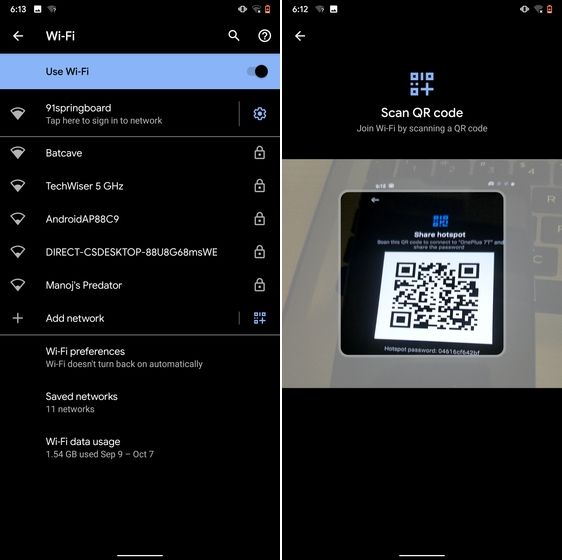
I know the feeling when someone asks you to share your WiFi's password and you can't seem to remember it. If you use a strong password with multiple hashes and characters then it becomes even more tedious to type it out. In such cases, a QR code can help you seamlessly connect to WiFi networks. Thankfully, Android 10 has this not-so-hidden feature under the WiFi Settings page. Open it and you will find the QR code scanner besides the "Add Network" section. Now, scan the QR code and you will be connected in no time.

5. Share WiFi with QR Code

6. Randomize MAC Address

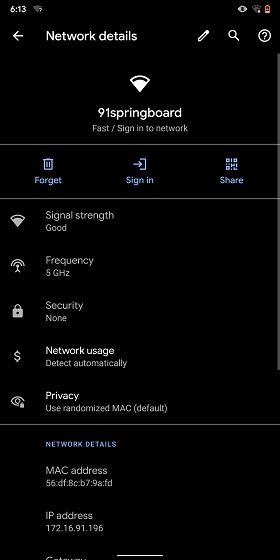
MAC address is a unique identifier assigned to WiFi-enabled devices including smartphones. Most devices come with a static MAC which can be exploited and used for tracking user movement. So having a random MAC address reduces the chance of tracking and strengthens your privacy. If you are running Android 10 then you can randomize the MAC address from the WiFi Settings page. Tap on the WiFi that you are connected to and open "Privacy". Here, make sure "Use randomized MAC" is your default pick.

6. Randomize MAC Address

7. Force Apps to Resize in Split Mode

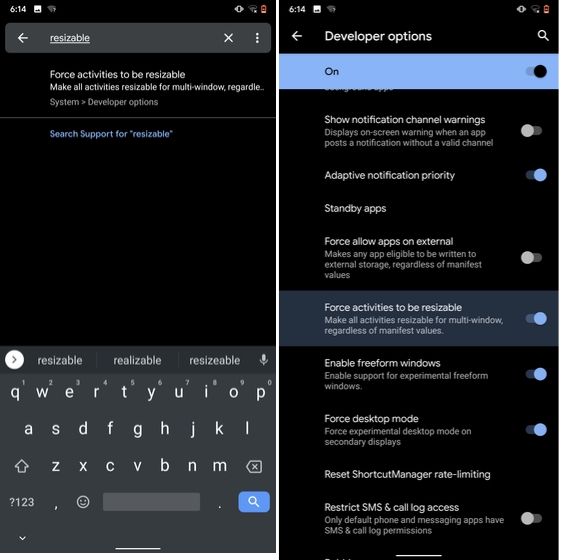
Android has some unique features like Split Mode which make it quite distinct from iOS. It lets you run two apps at once so you can effortlessly multitask between them. However, not all apps support Split Mode and that's where this hidden Android feature comes into play. With this feature, you can force any app to resize in split mode, irrespective of the app compatibility. So to enable this feature, open Settings and search for "resizable". Open the first result and enable "Force activities to be resizable". Now, restart your device and you can enjoy any app in the Split mode.

7. Force Apps to Resize in Split Mode

8. Default USB Configuration

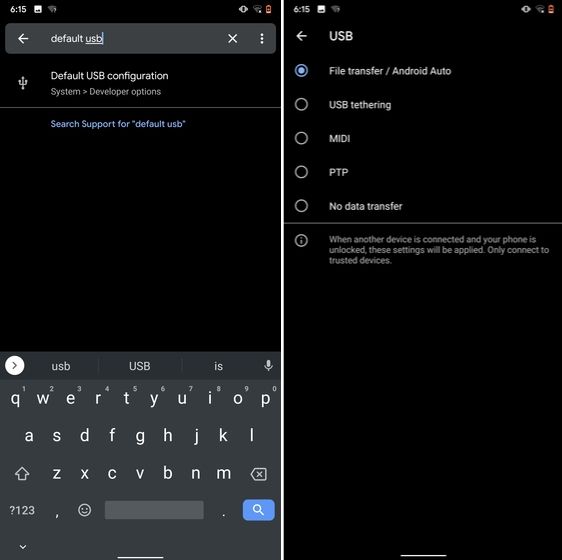
If you are someone who regularly connects Android devices to PC then this sneaky feature is going to help you a lot. Android 10 now allows you to choose your default USB configuration. If you transfer files regularly then simply choose the desired settings and you are good to go. To configure USB, open Settings and search for "Default USB" and tap on the first result. Here, choose "File transfer" or any other settings based on your preference.

8. Default USB Configuration (2) hidden android features

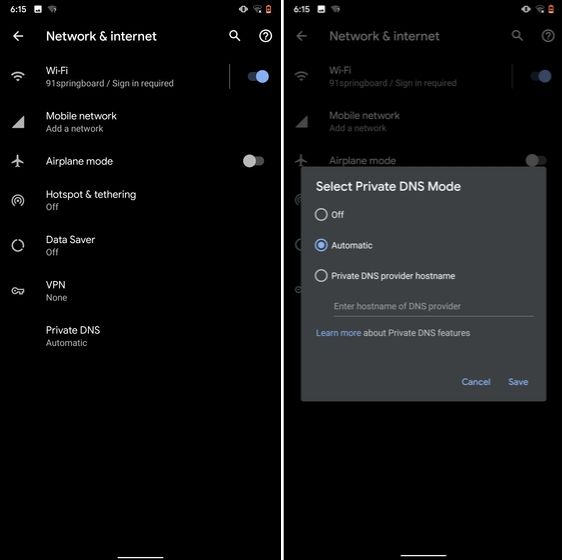
9. Private DNS

While Private DNS was launched with Android Pie, it still remains one of the least talked features of Android. It allows you to encrypt your DNS query so no one can read it, not even your internet service provider. You can find the Private DNS feature in the "Network and Internet" settings page. Here, open "Private DNS" and choose Automatic for Google's DNS or you can also select some other DNS providers as well. I would recommend you to go with Cloudflare's DNS.

9. Private DNS

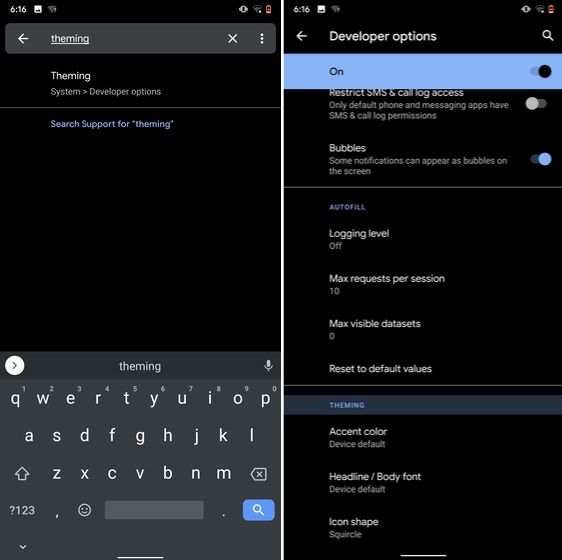
10. Device Theming

Device theming has finally arrived on Android, but it's still hidden under the developer options. You can change the accent color, font and icon shape from a handful of options. To find the desired settings page, open Settings and search for "theming". Tap on the top result and customize your Android device as you prefer.

10. Device Theming

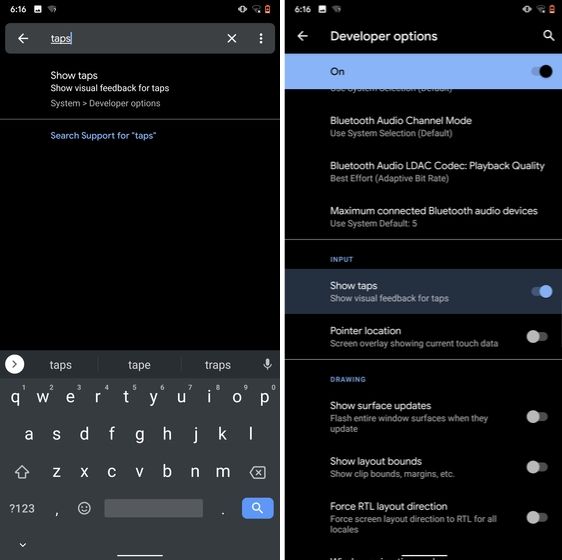
11. Show Taps While Screen Recording

With the release of Android Oreo, Google removed the ability to show taps while screen recording for security reasons. However, the settings to configure taps is still available and hidden under the developer options. Just open the Settings page and search for "taps". Open the first result and enable the toggle. Now, you can record your screen with taps and that's really convenient.

11. Show Taps While Screen Recording hidden android features

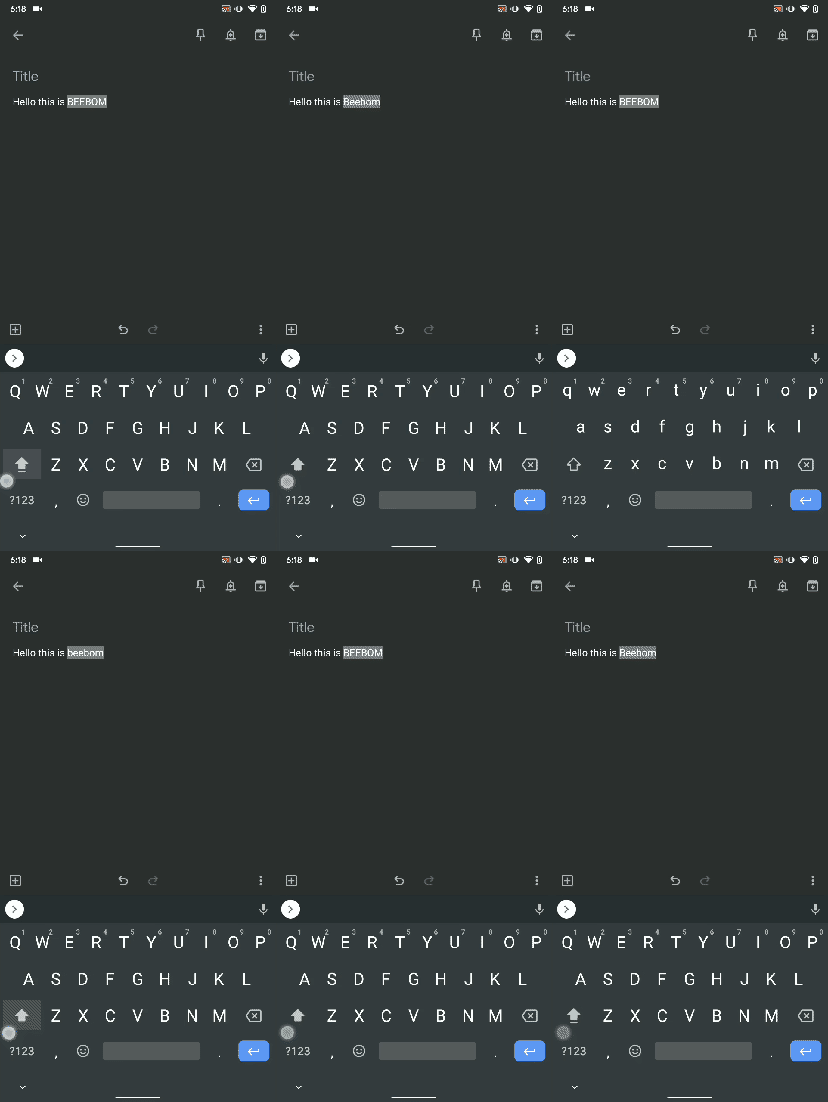
12. Capitalize Words Quickly

If you want to capitalize words quickly then Gboard has this nifty feature which is super helpful and I simply love it. Just select the words and tap the "Shift" button twice to capitalize a chunk of words at once. You can also make it lowercase by similarly double tapping the shift button. And if you just want to keep the initials capital then tap the shift button once. That's pretty great, right? So go ahead and type hassle-free with Gboard.

Capitalize Words Quickly

13. Uninstall Multiple Apps

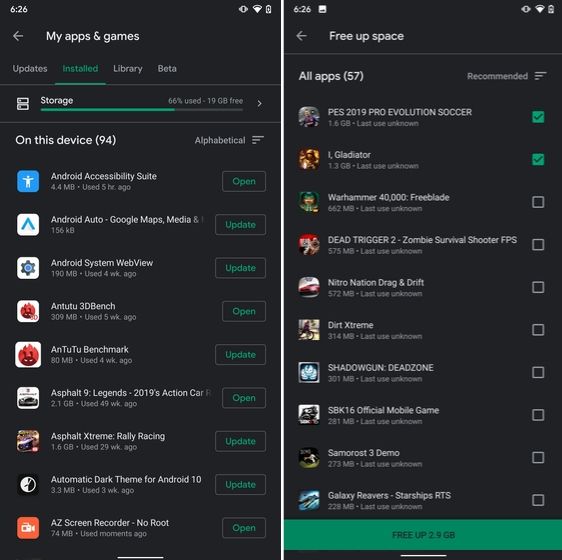
One of the best hidden Android features is that you can uninstall multiple apps at once. It works on older versions of Android as well so that is great. All you have to do is open the Google Play Store and tap on the hamburger menu and select "My apps and games". Here, switch to the "Installed" section and then tap on "Storage". After that, simply select apps that you want to uninstall and hit that "Free Up" button. Voila, multiple apps just got uninstalled in just one tap.

13. Uninstall Multiple Apps

14. Clear Site Storage Using Chrome

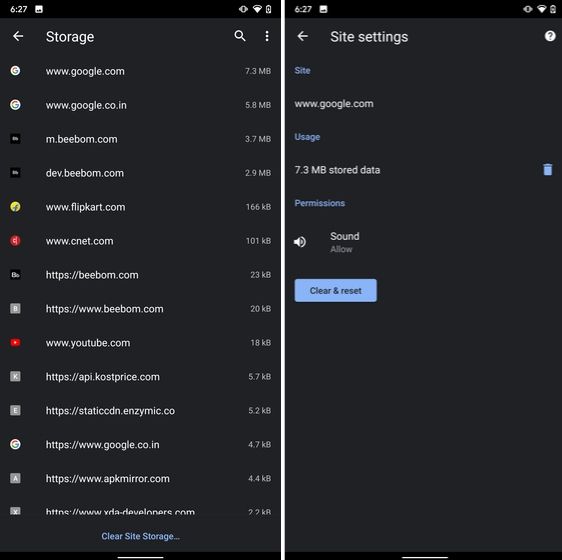
Chrome is notorious for accumulating a large amount of data in background which makes the performance worse and also takes up crucial storage space. If you want to check what websites are eating up your memory space then a hidden Chrome setting can help you with that. Open Chrome on your Android device and head over to its Settings page. Now, navigate to Site Settings and open Storage. Here, you will find all the websites with their storage space. Open any website and tap on the "Delete" icon to finally free up your internal storage from unnecessary cached data.

14. Clear Site Storage Using Chrome

15. Street View Layer in Google Maps

Street View is an immersive way to explore places and find new landmarks, hotels, restaurants from anywhere around the world. Now, the Street View Layer has been added to Google Maps and it works pretty well. To check if Street View is available in your region, open Google Maps and tap on the "layer" icon on the top-right corner. Now, tap on "Street View" icon and then zoom out to find blue lines on the map. Finally, tap on the blue lines and Street View will show up for that place. That's cool, right? So go ahead and check out Street View to find some hidden gems around the world.

15. Street View Layer in Google Maps hidden android features

Note: The blue lines show up wherever street view is available.

@EVERYTHING NT

Related news


  1. Pentestmonkey
  2. Pentest Linux
  3. Pentest Linux
  4. Pentest Checklist
  5. Hacker News
  6. Pentest Software
  7. Hacking Wifi
  8. Hacker Wifi Password
  9. Pentest Enumeration
  10. Hacking With Python
  11. Pentest Training

Monday, June 8, 2020

BurpSuite Introduction & Installation


What is BurpSuite?
Burp Suite is a Java based Web Penetration Testing framework. It has become an industry standard suite of tools used by information security professionals. Burp Suite helps you identify vulnerabilities and verify attack vectors that are affecting web applications. Because of its popularity and breadth as well as depth of features, we have created this useful page as a collection of Burp Suite knowledge and information.

In its simplest form, Burp Suite can be classified as an Interception Proxy. While browsing their target application, a penetration tester can configure their internet browser to route traffic through the Burp Suite proxy server. Burp Suite then acts as a (sort of) Man In The Middle by capturing and analyzing each request to and from the target web application so that they can be analyzed.


Everyone has their favorite security tools, but when it comes to mobile and web applications I've always found myself looking BurpSuite . It always seems to have everything I need and for folks just getting started with web application testing it can be a challenge putting all of the pieces together. I'm just going to go through the installation to paint a good picture of how to get it up quickly.

BurpSuite is freely available with everything you need to get started and when you're ready to cut the leash, the professional version has some handy tools that can make the whole process a little bit easier. I'll also go through how to install FoxyProxy which makes it much easier to change your proxy setup, but we'll get into that a little later.

Requirements and assumptions:

Mozilla Firefox 3.1 or Later Knowledge of Firefox Add-ons and installation The Java Runtime Environment installed

Download BurpSuite from http://portswigger.net/burp/download.htmland make a note of where you save it.

on for Firefox from   https://addons.mozilla.org/en-US/firefox/addon/foxyproxy-standard/


If this is your first time running the JAR file, it may take a minute or two to load, so be patient and wait.


Video for setup and installation.


You need to install compatible version of java , So that you can run BurpSuite.

More information


Video Archives Of Security Conferences And Workshops


Just some links for your enjoyment

List of security conferences in 2014

Video archives:


AIDE (Appalachian Institute of Digital Evidence)


Blackhat
Botconf
Bsides
Chaos Communication Congress
Defcon
Derbycon
Digital Bond's S4x14
Circle City Con
GrrCON Information Security Summit & Hacker Conference
Hack in the box HITB
InfowarCon
Ruxcon
Shmoocon
ShowMeCon
SkyDogCon
TakeDownCon
Troopers
Heidelberg Germany
Workshops, How-tos, and Demos

Special thanks to  Adrian Crenshaw for his collection of videos

Related word


Sunday, June 7, 2020

CEH: Gathering Network And Host Information, Types Of Scan


In Hacking the main focus is over gathering the information about victim or victim's machine. Which will help to find out which type of exploit will works according to the given circumstances. Gathering the network and host information means to find out by which network, the which victim's machine is connected and communicating over the network. Moreover, scanning is also performed for gathering information about open and closed ports. After that they'll able to find the vulnerabilities in the target system and try to get access to the system.

Types Of Scan

As a CEH you should know the scan types and uses:

SYN

SYN scan doesn't complete the TCP three way handshake that is why it is known as a half-open scan. An attacker send a SYN packet to the victim machine if SYN/ACK packet is received back to attacker, then it clarify that the port is listening due to the acknowledgment by the victim that it has completed the connection. While if the attacker is received the RST/ACK packet then it assumed that the port is closed or open.


XMAS

XMAS scan works only on target system that has the RFC 793 development of TCP/IP and it doesn't works against any version of windows.
XMAS scan send a packet with by setting up the FIN, URG and PSH flags of the TCP header. The function of this scan is if the port is active there will be no response but if the port is closed the target responds with a RST/ACK packet.


FIN

A FIN scan send a packet by setting up only the FIN flag of the TCP. This scan is similar to XMAS scan. FIN scan receives no response if the port is active while if the port is closed it receives the RST/ACK packet.


NULL 

NULL scan is also similar to the XMAS scan. But the only difference is that it sends a packet without setting up the any flag of TCP header. NULL scan receives no response if the port is open but if the port is closed it receives the RST/ACK packet.


IDLE

It is just like spoofing an IP address by sending a SYN packet to the victim's machine to find out which services are available over the system. This scan is completed with the help of another system called as "Zombie" (that is not receiving or transmitting any information).


Related word

10 Best Wifi Hacking Android Apps To Hack Others Wifi (Without Root)

 Top 10 Best wifi hacking apps to hack wifi^s.   

Today, a smartphone without internet is like a decade ago featured phone which is mainly used to dial and receive the call. No one would even want such a phone today. The Internet is now a necessity for every mobile user. They can't live without the internet and unfortunately; if the Internet is not working due to some signal issues; they get frustrated and sometimes depressed too.


Generally, we need to pay for the Internet subscription package to run mobile data on our smartphone. But what to do if I don't want to spend money on the Internet? The solution is to connect your mobile with WiFi. You can access the internet from there. Easy, right? NO, it's not easy until you know the password of WiFi. But what if you don't know.

Two ways possible in this situation

  1. Either you ask for the password to the owner; he will provide you to use his internet through Wi-Fi
  2. You have to hack the Wi-Fi password of other's network and use the internet as an unauthorized person.

First is not reliable when you don't know the person so, you only have a second option. Today, I am going to share a few apps that help you steal the password and allow you to use the internet from others' account.

1. WiFi WPS WPA Tester

This is the foremost tool to hack the WiFi password without knowing even the root. This is a preferred choice of numerous smartphone users to decipher the pin and get access to the Wi-Fi. As time passes, a tool is upgraded and now even hack the WiFi networks while it was used to check if an access point is highly vulnerable to the rancorous attacks or not.

If you are using Lollipop or above version on your android mobile phone; you don't even need to root your device to crack a WiFi network.

Android App

Pros

  • Easy to use
  • Free
  • Decrypt the password in no time.
  • Implementation of several algos like Zhao, Arris, Dlink and more.

Cons

  • Need root access if you are using the version below Lollipop.

2. WPS Connect

Routers which has enabled a WPS protocol can be hacked with this app. The important thing is that almost all routers found in public places and homes fall under this category. In short, you will have what you want. Moreover, you can focus on your router & examine that it's vulnerable to any malicious attack or not. It helps you hack the WiFi password without root and also strengthen your WiFi network.

Once you identify the vulnerable (accessible) network, you can quickly get the password and start using the internet without any hassle. It uses algorithms like easyboxPIN and Zhao. Although, this app is not compatible with various Android phones as it is tested on Android devices like the Galaxy series, Nexus and more.

Android App

Pros

  • It's free and easy to use
  • Powerful algorithms (Zhao & easyboxPin) to crack the password
  • Supports pinning of Wi-Fi routers

Cons

  • Incompatible with few android devices
  • Couldn't identify the network automatically.

3. WiFi WPS WPA Tester Premium

This is an excellent app to decrypt the WiFi network password on your android phone. This works fine on rooted & non-rooted android phones. If you can root the Android device; you can have a better chance to hack into. Today,  security is the primary concern and so, many people use the highly secured wireless router, I think. For such networks, this app will not work as it should be. But, still it can work for numerous times with the help of WPS; not all the time. Every time, you have to try your luck to get access to other's WiFi network. This WPS WPA tester is a premium apk.

Android App

Pros

  • Works for both rooted and non-rooted android devices
  • Find the nearby network and connect your mobile with it.

Cons

  • It's a premium apk.
  • You have to try your luck to get access to the nearby network.
  • Not good to connect with highly secured wireless routers.

4. AndroDumpper Wifi (WPS Connect) – Discontinued

If you want to connect to a router which is WPS enabled; download this app immediately without going down to browse for other apps. Just open the app, start its interface & find the nearby wireless networks, you want to connect with. The app will provide an excellent option to regain the password of a selected network with & without root. Once you implemented the algorithm; it will display the password in app screen & connect to the network. Isn't it easy for you?

Android App

Pros

  • It's Free on Google Play Store
  • Easy to use and faster than some other tool.
  • Works fine for rooted & non-rooted devices
  • A dedicated blog is available for the tool (Get guidance anytime)
  • Supports for giant company routers (Vodaphone, Asus, Huawei, Dlink, etc.)

Cons

  • Rooting is required if you are using a version below android 5.0
  • Works only for WPS enabled routers.

5. Wi-fi Password Hacker Prank

Wifi Password hacker prank is a free app for the android users and can help you to connect your android phone to wifi networks available nearby. This free app simulates a process of hacking the wireless network with your smartphone. With this app, you can hack all wifi network passwords with just one key. The Prank word itself says it's a funny app used to prank with your friends. Sometimes, girls can be impressed with this prank as well. But try this at your own risk. Look excellent and professional in front of your friends and colleagues.

Steps to Hack Wifi using the Wifi Password Hacker Prank:

  • Catch up the wireless networks near to you and then select the secure network you wish to hack.
  • Wait for a while & a dialogue will be opened with the wifi password.
  • Bingo! Paste the password and start using others' Internet without spending single money.
  • Watch your favourite show and movie in High-Definition quality without worrying about your mobile data.
Android App

6. WiFi Warden

WiFi Warden is one of the finest and free android WiFi hacking apps to get access to others WiFi with ease. With WiFi Warden, a user can Analyze the WiFi networks, connect to your WiFi using the passphrase and WPS and view saved WiFi passwords without root.

By analyzing the WiFi networks, you can see all necessary information that can be discovered on the wireless networks around including BSSID, SSID, Channel bandwidth, encryption, security, router manufacturer, distance and channel number, etc.

Android App

Pros

  • Find the less crowded channel to get WiFi access.
  • You can root your device on all Android versions.
  • Easy to use and connect with the router quickly.
  • All features of this app are available for free.

Cons

  • This app doesn't work on all types of router, use a passphrase instead.
  • Access Point (AP) must have enabled WPS.
  • Require Android version 6 (Marshmallow) or higher version is necessary to display Wi-Fi networks around you.
  • Some of the features are in the testing phase. So, use it your own risk.

7. WiFi Password

'WiFi Password' is a completely free app for those who don't want to get away from the Internet even when their internet data is running out. You can connect with others' WiFi routers and use their Internet.

If you are using Android Version 5 or above; 'WiFi Password' can be the right choice for you to watch your favorite shows on YouTube in HD without even worrying about Mobile Data.

Android App

Pros:

  • Millions of WiFi Hotspots
  • Scan and detect the WiFi security
  • Connect WiFi Hotspot nearby without knowing the WiFi Password
  • You can simply add a free WiFi Hotspot by sharing the passwords with others.

Cons :

  • Still, there are some glitches in it but works well.

8. WiFi Kill Pro

WiFi Kill is one the best WiFi network controller application which can disable the Internet connection of others who are connected to the same network. Yes, this is true. It is a useful tool for internet users who want to improve their data speed by disabling other's internet connection and allocate all the bandwidth to your device only.

Currently, this app is only for Android users and needs root access to perform well.

Android App

Pros


    • You can see all connected device on the same network you are connected.

    • Display the data transfer rate of all devices

    • Monitor network activity

    • You can cut the network connection of any connected device.
  • It works well on tablets too.

Cons


    • Require root access
  • Require Android version 4.0.3 or up to use this app.

9. Penetrate Pro

A popular Wifi hacker app for android users, Penetrate pro is free and works well on Android devices. This app is widely used to find WEP and/or WPA keys to connect the devices with network routers without knowing the wifi password. Just install the app and search for the network; this app starts automatically displaying the WEP/WPA keys on the screen. Tap on the network you want to connect; one it gets connected; you can start watching videos on YouTube. Quite interesting, doesn't it?

Android App

Pros


    • Easy to search nearby free wifi networks.

    • Connect the network without knowing keys
  • Available for Free

Cons


    • Not available on Google Play Store; need to download manually.
  • Works well only for the rooted android devices

So, you have got the list of apps that help you use the internet from other's wireless network without getting caught. If you have any idea of any other Wi-Fi password hacking app; just let me know. We would love to discuss it here.


Disclaimer: VR Bonkers is not responsible for any consequences if you face while using any of the above apps. This is just a list and we are not taking any responsibility for the same. So, use them at your risk.


@EVERYTHING NT

Related posts
  1. Hacker Ethic
  2. Pentest Dns
  3. Pentest Website
  4. Pentest Tools
  5. Pentest Nmap
  6. Pentest Owasp Top 10
  7. Hacker Lab
  8. Pentest Partners
  9. Pentestbox
  10. Hacking Link
  11. Hacking Online Games
  12. Pentest Example Report
  13. Hacking Games Online
  14. How To Pentest A Network
  15. Pentest Jobs
  16. Hackerone
  17. Hacker Kevin Mitnick

Playing With TLS-Attacker

In the last two years, we changed the TLS-Attacker Project quite a lot but kept silent about most changes we implemented. Since we do not have so much time to keep up with the documentation (we are researchers and not developers in the end), we thought about creating a small series on some of our recent changes to the project on this blog.


We hope this gives you an idea on how to use the most recent version (TLS-Attacker 2.8). If you feel like you found a bug, don't hesitate to contact me via GitHub/Mail/Twitter. This post assumes that you have some idea what this is all about. If you have no idea, checkout the original paper from Juraj or our project on GitHub.

TLDR: TLS-Attacker is a framework which allows you to send arbitrary protocol flows.


Quickstart:
# Install & Use Java JDK 8
$ sudo apt-get install maven
$ git clone https://github.com/RUB-NDS/TLS-Attacker
$ cd TLS-Attacker
$ mvn clean package

So, what changed since the release of the original paper in 2016? Quite a lot! We discovered that we could make the framework much more powerful by adding some new concepts to the code which I want to show you now.

Action System

In the first Version of TLS-Attacker (1.x), WorkflowTraces looked like this:
Although this design looks straight forward, it lacks flexibility. In this design, a WorkflowTrace is basically a list of messages. Each message is annotated with a <messageIssuer>, to tell TLS-Attacker that it should either try to receive this message or send it itself. If you now want to support more advanced workflows, for example for renegotiation or session resumption, TLS-Attacker will soon reach its limits. There is also a missing angle for fuzzing purposes. TLS-Attacker will by default try to use the correct parameters for the message creation, and then apply the modifications afterward. But what if we want to manipulate parameters of the connection which influence the creation of messages? This was not possible in the old version, therefore, we created our action system. With this action system, a WorkflowTrace does not only consist of a list of messages but a list of actions. The most basic actions are the Send- and ReceiveAction. These actions allow you to basically recreate the previous behavior of TLS-Attacker 1.x . Here is an example to show how the same workflow would look like in the newest TLS-Attacker version:


As you can see, the <messageIssuer> tags are gone. Instead, you now indicate with the type of action how you want to deal with the message. Another important thing: TLS-Attacker uses WorkflowTraces as an input as well as an output format. In the old version, once a WorkflowTrace was executed it was hard to see what actually happened. Especially, if you specify what messages you expect to receive. In the old version, your WorkflowTrace could change during execution. This was very confusing and we, therefore, changed the way the receiving of messages works. The ReceiveAction has a list of <expectedMessages>. You can specify what you expect the other party to do. This is mostly interesting for performance tricks (more on that in another post), but can also be used to validate that your workflow executedAsPlanned. Once you execute your ReceiveAction an additional <messages> tag will pop up in the ReceiveAction to show you what has actually been observed. Your original WorkflowTrace stays intact.


During the execution, TLS-Attacker will execute the actions one after the other. There are specific configuration options with which you can control what TLS-Attacker should do in the case of an error. By default, TLS-Attacker will never stop, and just execute whatever is next.

Configs

As you might have seen the <messageIssuer> tags are not the only thing which is missing. Additionally, the cipher suites, compression algorithms, point formats, and supported curves are missing. This is no coincidence. A big change in TLS-Attacker 2.x is the separation of the WorkflowTrace from the parameter configuration and the context. To explain how this works I have to talk about how the new TLS-Attacker version creates messages. Per default, the WorkflowTrace does not contain the actual contents of the messages. But let us step into TLS-Attackers point of view. For example, what should TLS-Attacker do with the following WorkflowTrace:

Usually, the RSAClientKeyExchange message is constructed with the public key from the received certificate message. But in this WorkflowTrace, we did not receive a certificate message yet. So what public key are we supposed to use? The previous version had "some" key hardcoded. The new version does not have these default values hardcoded but allows you as the user to define the default values for missing values, or how our own messages should be created. For this purpose, we introduced the new concept of Configs. A Config is a file/class which you can provide to TLS-Attacker in addition to a WorkflowTrace, to define how TLS-Attacker should behave, and how TLS-Attacker should create its messages (even in the absence of needed parameters). For this purpose, TLS-Attacker has a default Config, with all the known hardcoded values. It is basically a long list of possible parameters and configuration options. We chose sane values for most things, but you might have other ideas on how to do things. You can execute a WorkflowTrace with a specific config. The provided Config will then overwrite all existing default values with your specified values. If you do not specify a certain value, the default value will be used. I will get back to how Configs work, once we played a little bit with TLS-Attacker.

TLS-Attacker ships with a few example applications (found in the "apps/" folder after you built the project). While TLS-Attacker 1.x was mostly a standalone tool, we currently see TLS-Attacker more as a library which we can use by our more sophisticated projects. The current example applications are:
  • TLS-Client (A TLS-Client to execute WorkflowTraces with)
  • TLS-Server (A TLS-Server to execute WorkflowTraces with)
  • Attacks (We'll talk about this in another blog post)
  • TLS-Forensics (We'll talk about this in another blog post)
  • TLS-Mitm (We'll talk about this in another blog post)
  • TraceTool (We'll talk about this in another blog post) 

TLS-Client

The TLS-Client is a simple TLS-Client. Per default, it executes a handshake for the default selected cipher suite (RSA). The only mandatory parameter is the server you want to connect to (-connect).

The most trivial command you can start it with is:

Note: The example tool does not like "https://" or other protocol information. Just provide a hostname and port

Depending on the host you chose your output might look like this:

or like this:

So what is going on here? Let's start with the first execution. As I already mentioned. TLS-Attacker constructs the default WorkflowTrace based on the default selected cipher suite. When you run the client, the WorkflowExecutor (part of TLS-Attacker which is responsible for the execution of a WorkflowTrace) will try to execute the handshake. For this purpose, it will first start the TCP connection.
This is what you see here:

After that, it will execute the actions specified in the default WorkflowTrace. The default WorkflowTrace looks something like this:
This is basically what you see in the console output. The first action which gets executed is the SendAction with the ClientHello.

Then, we expect to receive messages. Since we want to be an RSA handshake, we do not expect a ServerKeyExchange message, but only want a ServerHello, Certificate and a ServerHelloDone message.

We then execute the second SendAction:

and finally, we want to receive a ChangeCipherSpec and Finished Message:

In the first execution, these steps all seem to have worked. But why did they fail in the second execution? The reason is that our default Config does not only allow specify RSA cipher suites but creates ClientHello messages which also contain elliptic curve cipher suites. Depending on the server you are testing with, the server will either select and RSA cipher suite, or an elliptic curve one. This means, that the WorkflowTrace will not executeAsPlanned. The server will send an additional ECDHEServerKeyExchange. If we would look at the details of the ServerHello message we would also see that an (ephemeral) elliptic curve cipher suite is selected:

Since our WorkflowTrace is configured to send an RSAClientKeyExchange message next, it will just do that:

Note: ClientKeyExchangeMessage all have the same type field, but are implemented inside of TLS-Attacker as different messages

Since this RSAClientKeyExchange does not make a lot of sense for the server, it rejects this message with a DECODE_ERROR alert:

If we would change the Config of TLS-Attacker, we could change the way our ClientHello is constructed. If we specify only RSA cipher suites, the server has no choice but to select an RSA one (or immediately terminate the connection). We added command line flags for the most common Config changes. Let's try to change the default cipher suite to TLS_ECDHE_RSA_WITH_AES_128_CBC_SHA:

As you can see, we now executed a complete ephemeral elliptic curve handshake. This is, because the -cipher flag changed the <defaultSelectedCiphersuite> parameter (among others) in the Config. Based on this parameter the default WorkflowTrace is constructed. If you want, you can specify multiple cipher suites at once, by seperating them with a comma.

We can do the same change by supplying TLS-Attacker with a custom Config via XML. To this we need to create a new file (I will name it config.xml) like this:

You can then load the Config with the -config flag:

For a complete reference of the supported Config options, you can check out the default_config.xml. Most Config options should be self-explanatory, for others, you might want to check where and how they are used in the code (sorry).

Now let's try to execute an arbitrary WorkflowTrace. To do this, we need to store our WorkflowTrace in a file and load it with the -workflow_input parameter. I just created the following WorkflowTrace:


As you can see I just send a ServerHello message instead of a ClientHello message at the beginning of the handshake. This should obviously never happen but let's see how the tested server reacts to this.
We can execute the workflow with the following command:

The server (correctly) responded with an UNEXPECTED_MESSAGE alert. Great!

Output parameters & Modifications

You are now familiar with the most basic concepts of TLS-Attacker, so let's dive into other things TLS-Attacker can do for you. As a TLS-Attacker user, you are sometimes interested in the actual values which are used during a WorkflowTrace execution. For this purpose, we introduced the -workflow_output flag. With this parameter, you can ask TLS-Attacker to store the executed WorkflowTrace with all its values in a file.
Let's try to execute our last created WorkflowTrace, and store the output WorkflowTrace in the file out.xml:


The resulting WorkflowTrace looks like this:

As you can see, although the input WorkflowTrace was very short, the output trace is quite noisy. TLS-Attacker will display all its intermediate values and modification points (this is where the modifiable variable concept becomes interesting). You can also execute the output workflow again.


Note that at this point there is a common misunderstanding: TLS-Attacker will reset the WorkflowTrace before it executes it again. This means, it will delete all intermediate values you see in the WorkflowTrace and recompute them dynamically. This means that if you change a value within <originalValue> tags, your changes will just be ignored. If you want to influence the values TLS-Attacker uses, you either have to manipulate the Config (as already shown) or apply modifications to TLS-Attackers ModifiableVariables. The concept of ModifiableVariables is mostly unchanged to the previous version, but we will show you how to do this real quick anyway.

So let us imagine we want to manipulate a value in the WorkflowTrace using a ModifiableVariable via XML. First, we have to select a field which we want to manipulate. I will choose the protocol version field in the ServerHello message we sent. In the WorkflowTrace this looked like this:

For historical reasons, 0x0303 means TLS 1.2. 0x0300 was SSL 3. When they introduced TLS 1.0 they chose 0x0301 and since then they just upgraded the minor version.

In order to manipulate this ModifiableVariable, we first need to know its type. In some cases it is currently non-trivial to determine the exact type, this is mostly undocumented (sorry). If you don't know the exact type of a field you currently have to look at the code. The following types and modifications are defined:
  • ModifiableBigInteger: add, explicitValue, shiftLeft, shiftRight, subtract, xor
  • ModifiableBoolean: explicitValue, toggle
  • ModifiableByteArray: delete, duplicate, explicitValue, insert, shuffle, xor
  • ModifiableInteger: add, explicitValue, shiftLeft, shiftRight, subtract, xor
  • ModifiableLong: add, explicitValue, subtract, xor
  • ModifiableByte: add, explicitValue, subtract, xor
  • ModifiableString: explicitValue
As a rule of thumb: If the value is only up to 1 byte of length we use a ModifiableByte. If the value is up to 4 bytes of length, but the values are used as a normal number (for example in length fields) it is a ModifiableInteger. Fields which are used as a number which are bigger than 4 bytes (for example a modulus) is usually a ModifiableBigInteger. Most other types are encoded as ModifiableByteArrays. The other types are very rare (we are currently working on making this whole process more transparent).
Once you have found your type you have to select a modification to apply to it. For manual analysis, the most common modifications are the XOR modification and the explicit value modification. However, during fuzzing other modifications might be useful as well. Often times you just want to flip a bit and see how the server responds, or you want to directly overwrite a value. In this example, we want to overwrite a value.
Let us force TLS-Attacker to send the version 0x3A3A. To do this I consult the ModifiableVariable README.md for the exact syntax. Since <protocolVersion> is a ModifiableByteArray I search in the ByteArray section.

I find the following snippet:

If I now want to change the value to 0x3A3A I modify my WorkflowTrace like this:

You can then execute the WorkflowTrace with:

With Wireshark you can now observe  that the protocol version got actually changed. You would also see the change if you would specify a -workflow_output or if you start the TLS-Client with the -debug flag.

More Actions

As I already hinted, TLS-Attacker has more actions to offer than just a basic Send- and ReceiveAction (50+ in total). The most useful, and easiest to understand actions are now introduced:

ActivateEncryptionAction

This action does basically what the CCS message does. It activates the currently "negotiated" parameters. If necessary values are missing in the context of the connection, they are drawn from the Config.


DeactivateEncryptionAction

This action does the opposite. If the encryption was active, we now send unencrypted again.


PrintLastHandledApplicationDataAction

Prints the last application data message either sent or received.


PrintProposedExtensionsAction

Prints the proposed extensions (from the client)


PrintSecretsAction

Prints the secrets (RSA) from the current connection. This includes the nonces, cipher suite, public key, modulus, premaster secret, master secret and verify data.


RenegotiationAction

Resets the message digest. This is usually done if you want to perform a renegotiation.


ResetConnectionAction

Closes and reopens the connection. This can be useful if you want to analyze session resumption or similar things which involve more than one handshake.


SendDynamicClientKeyExchangeAction

Send a ClientKeyExchange message, and always chooses the correct one (depending on the current connection state). This is useful if you just don't care about the actual cipher suite and just want the handshake done.


SendDynamicServerKeyExchangeAction

(Maybe) sends a ServerKeyExchange message. This depends on the currently selected cipher suite. If the cipher suite requires the transmission of a ServerKeyExchange message, then a ServerKeyExchange message will be sent, otherwise, nothing is done. This is useful if you just don't care about the actual cipher suite and just want the handshake done.


WaitAction

This lets TLS-Attacker sleep for a specified amount of time (in ms).


As you might have already seen there is so much more to talk about in TLS-Attacker. But this should give you a rough idea of what is going on.

If you have any research ideas or need support feel free to contact us on Twitter (@ic0nz1, @jurajsomorovsky ) or at https://www.hackmanit.de/.

If TLS-Attacker helps you to find a bug in a TLS implementation, please acknowledge our tool(s). If you want to learn more about TLS, Juraj and I are also giving a Training about TLS at Ruhrsec (27.05.2019).
Related articles